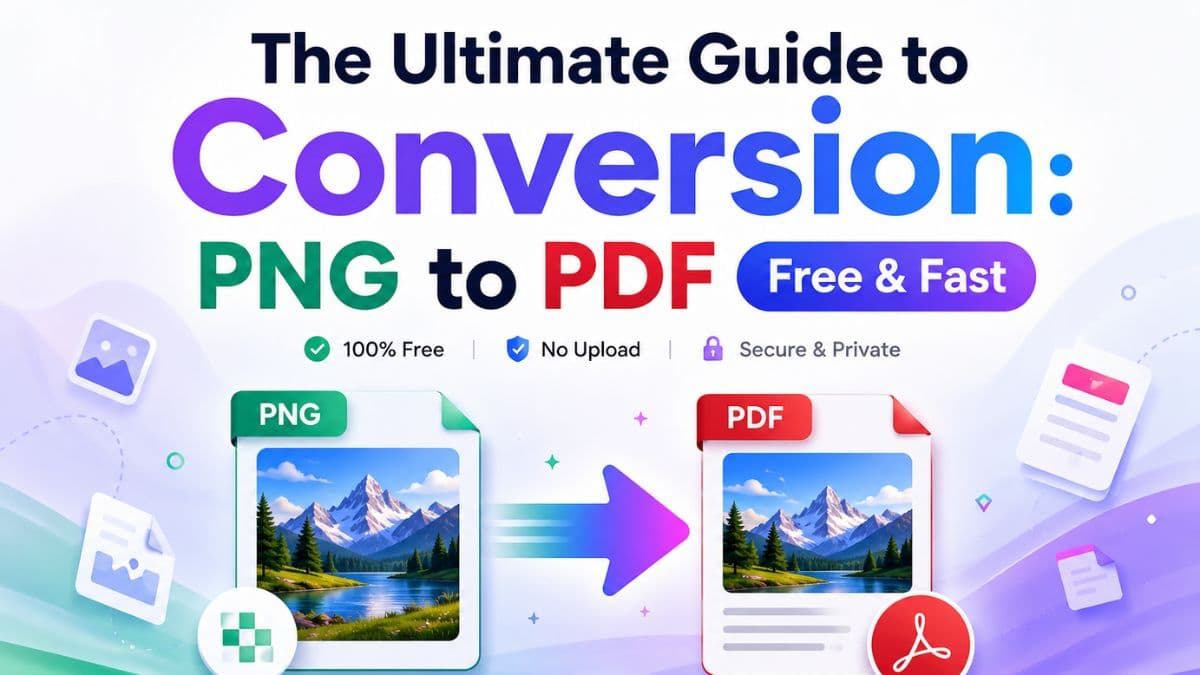
Whether you’re assembling a professional portfolio, submitting a batch of scanned receipts for expenses, or preparing documents for archiving, you'll often encounter the need to transform image files into documents. Among all the formats, the conversion from PNG to PDF is arguably one of the most requested digital workflows today.
But why exactly should you convert a perfectly good PNG image into a PDF, and how can you do it without downloading clunky, expensive software? Let’s explore the simplest way to get it done.
Understanding the Formats: PNG vs. PDF
Before diving into the process, it helps to understand why this conversion is so common.
What is a PNG? PNG (Portable Network Graphics) is a lossless image format. This means it retains stunning visual quality and supports transparent backgrounds. It’s perfect for digital artwork, logos, and screenshots. However, PNGs are strictly single-page graphic files.
What is a PDF? PDF (Portable Document Format) is the gold standard for sharing documents globally. Created by Adobe, a PDF preserves your formatting regardless of what software, hardware, or operating system the recipient is using. More importantly, a single PDF can hold dozens or hundreds of pages, making it ideal for bundling multiple images together.
Why Convert PNG to PDF? (Top Use Cases)
A quick conversion of your PNG files to PDF offers several distinct advantages depending on your goal:
- Combining Multiple Images: If you have 10 PNGs of a scanned contract, sending them individually is a messy experience for the receiver. A PNG to PDF converter lets you combine all 10 images into one neat, scrolling document.
- Cross-Platform Consistency: While most modern devices can open PNGs, PDF viewers are universally built into almost every web browser, phone, and computer on earth. You can guarantee the recipient sees exactly what you sent.
- Preventing Unwanted Edits: While no format is entirely immune to tampering, PDFs are much harder to casually edit than PNGs, making them the preferred format for official documents, invoices, and signed forms.
- Optimized Printing: Printing a batch of individual PNGs can sometimes lead to sizing and margin errors. A PDF ensures that each image is mapped perfectly to a printable page size (like A4 or Letter).
Step-by-Step: The Best Free PNG to PDF Converter
You don't need to purchase premium software to handle document conversion. Using Image-Resizer.net's Free PNG to PDF Converter, you can get the job done in seconds directly in your web browser.
Here is how it works:
Step 1: Upload Your PNG Images Navigate to the PNG to PDF Tool. Drag and drop your PNG files directly onto the page, or click to select them from your device. You can upload a single image or bulk-upload multiple images at once.
Step 2: Rearrange and Customize (Optional) If you uploaded multiple images, they will appear as individual pages in your final PDF. Need them in a specific order? Simply click and drag the images to rearrange them. You can also define your preferred page margins and orientation (Portrait vs. Landscape) if you want a uniform look.
Step 3: Convert & Download Click the "Convert to PDF" button. In just a few moments, your new PDF document will be generated and ready to download.
Why Choose Image-Resizer.net?
When you search for a "conversion png to pdf" tool online, you are met with thousands of results. Here's why our tool stands out:
- 100% Privacy Guaranteed: Unlike cloud-based converters that upload your sensitive documents to remote servers, our tool processes everything locally inside your browser. Your images never leave your device.
- No Software Required: Forget downloading shady apps or massive software suites. If you have a web browser, you have a PDF converter.
- High-Quality Output: Our conversion engine ensures that the crispness and high resolution of your original PNGs are beautifully preserved in the final PDF file.
- Completely Free: No hidden paywalls, watermarks, or daily limits.
Ready to transform your images? Try our free PNG to PDF Converter today and streamline your digital document workflow!
How to The Ultimate Guide to Conversion: PNG to PDF Free & Fast
Upload Your PNG Images
Navigate to the PNG to PDF Tool. Drag and drop your PNG files directly onto the page, or click to select them from your device. You can upload a single image or bulk-upload multiple images at once.
Rearrange and Customize
If you uploaded multiple images, they will appear as individual pages in your final PDF. Need them in a specific order? Simply click and drag the images to rearrange them. You can also define your preferred page margins and orientation (Portrait vs. Landscape) if you want a uniform look.
Convert & Download
Click the "Convert to PDF" button. In just a few moments, your new PDF document will be generated and ready to download.

Software engineer behind Image-Resizer.net, building fast, privacy-first image tools for creators. Trusted by thousands of users monthly to safely edit screenshots and images online.
Related Topics
Frequently Asked Questions
Get Weekly Tips
Image optimization tricks delivered to your inbox